
the river was lying again
Change: Plant this earlier: show the first lie in chapter 1, not only tell it.
Mycel keeps your chapters, characters, places and lore in one workspace. Your book is saved as plain Markdown files in a folder on your computer.
Windows and Linux first · One-time price · No account
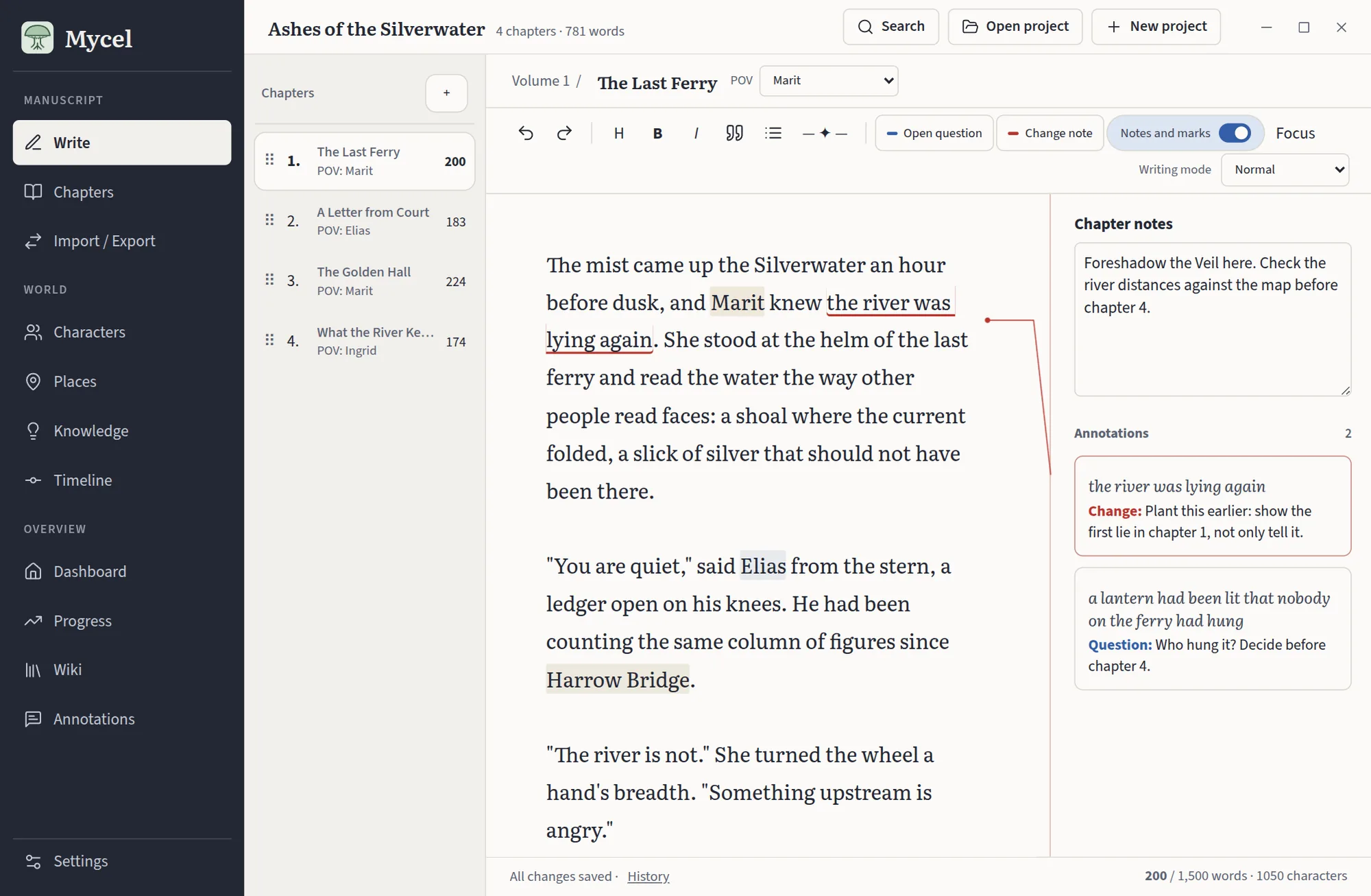
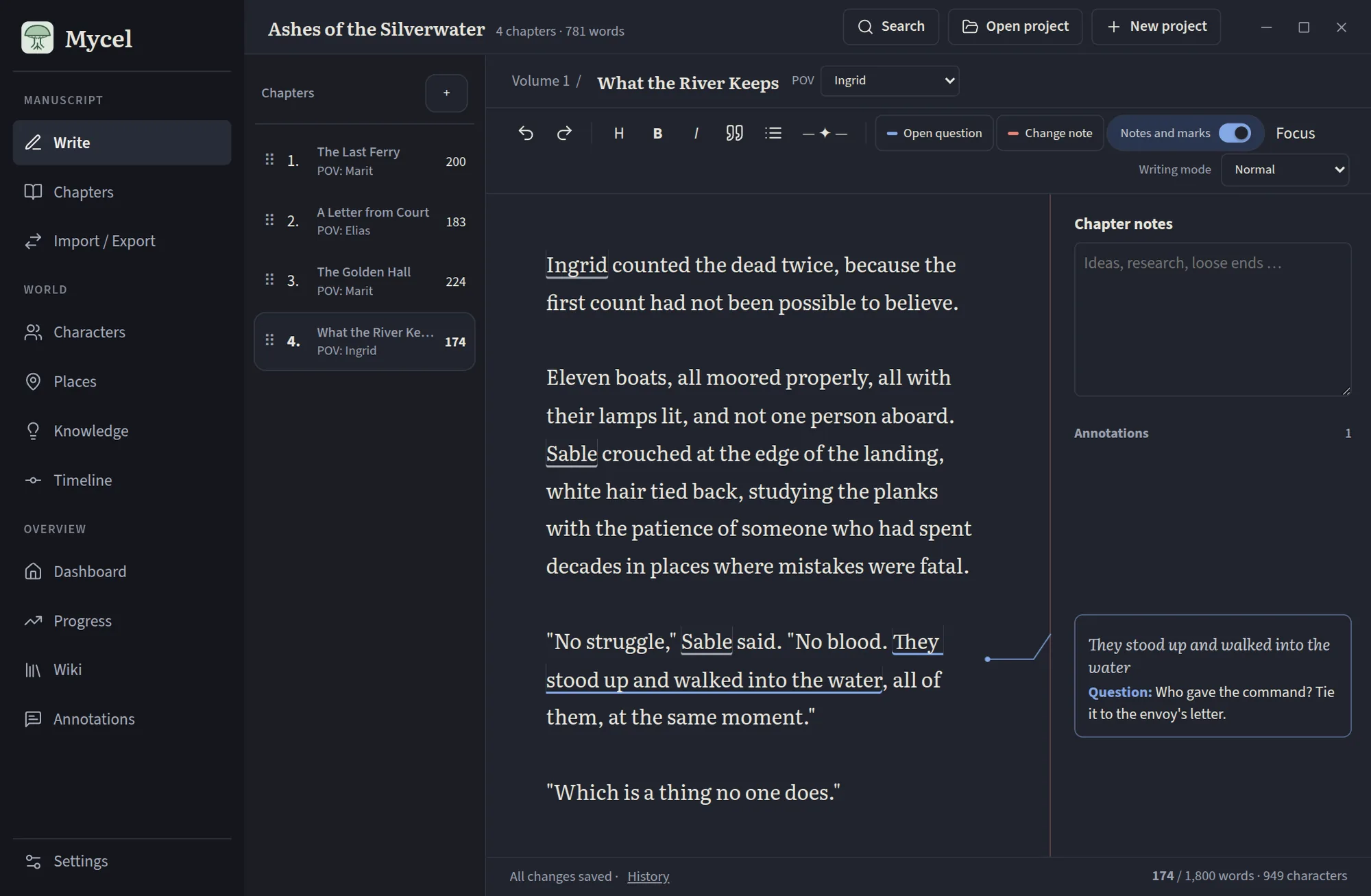
Select a passage, add a question or a change note, and carry on writing. Each note stays level with its words and is joined to them by a thin line, like a proof sheet marked up by an editor. Open questions and change notes are collected on one page, so you can work through them chapter by chapter when the draft is done.
The mist came up the Silverwater an hour before dusk, and Marit knew the river was lying again. She stood at the helm of the last ferry and read the water the way other people read faces.
Far above them, where the cliffs closed in, a lantern had been lit that nobody on the ferry had hung. It burned without flicker, the pale gold of the Hollow Folk.
the river was lying again
Change: Plant this earlier: show the first lie in chapter 1, not only tell it.
a lantern had been lit that nobody on the ferry had hung
Question: Who hung it? Decide before chapter 4.
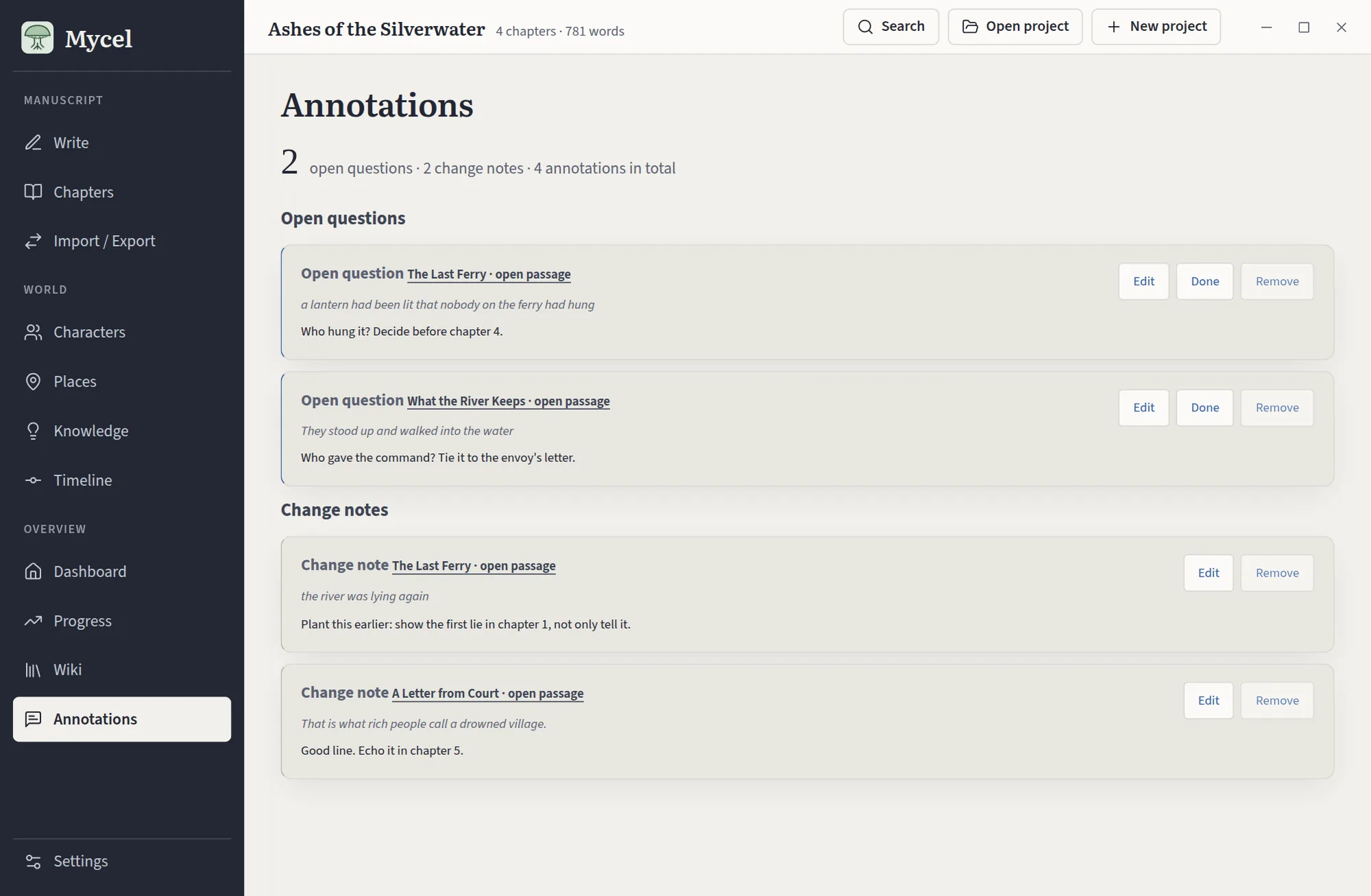
Every question and change note you leave is listed with its chapter and its passage. Mark one done, edit it or remove it, and jump straight back to the text.
The editor stays quiet, and the tools you need while drafting are one click away.
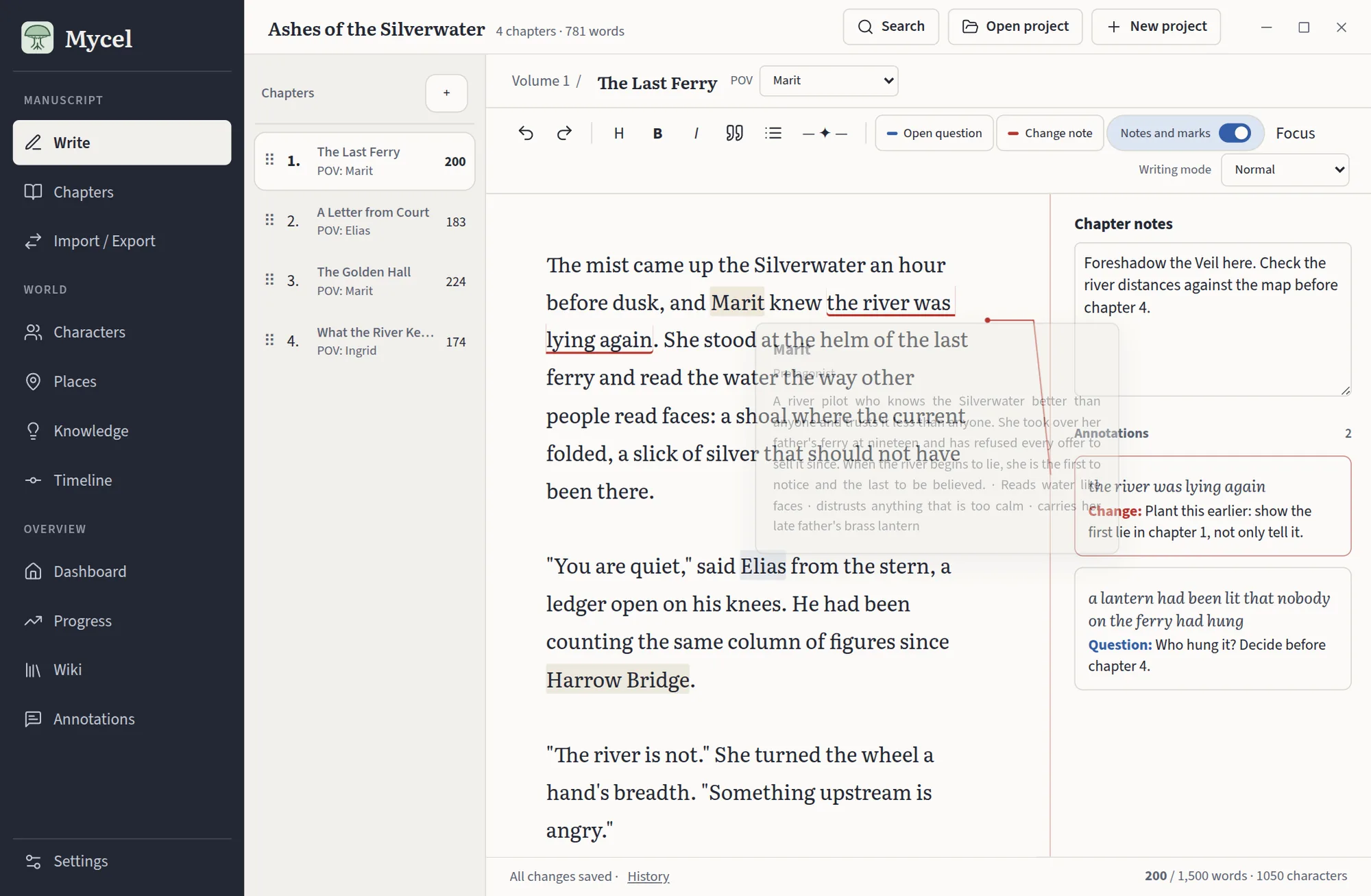
Write a character, place or lore name, or one of its aliases, and Mycel finds it. Hover over the name for a card with the profile, click it to open the entry.
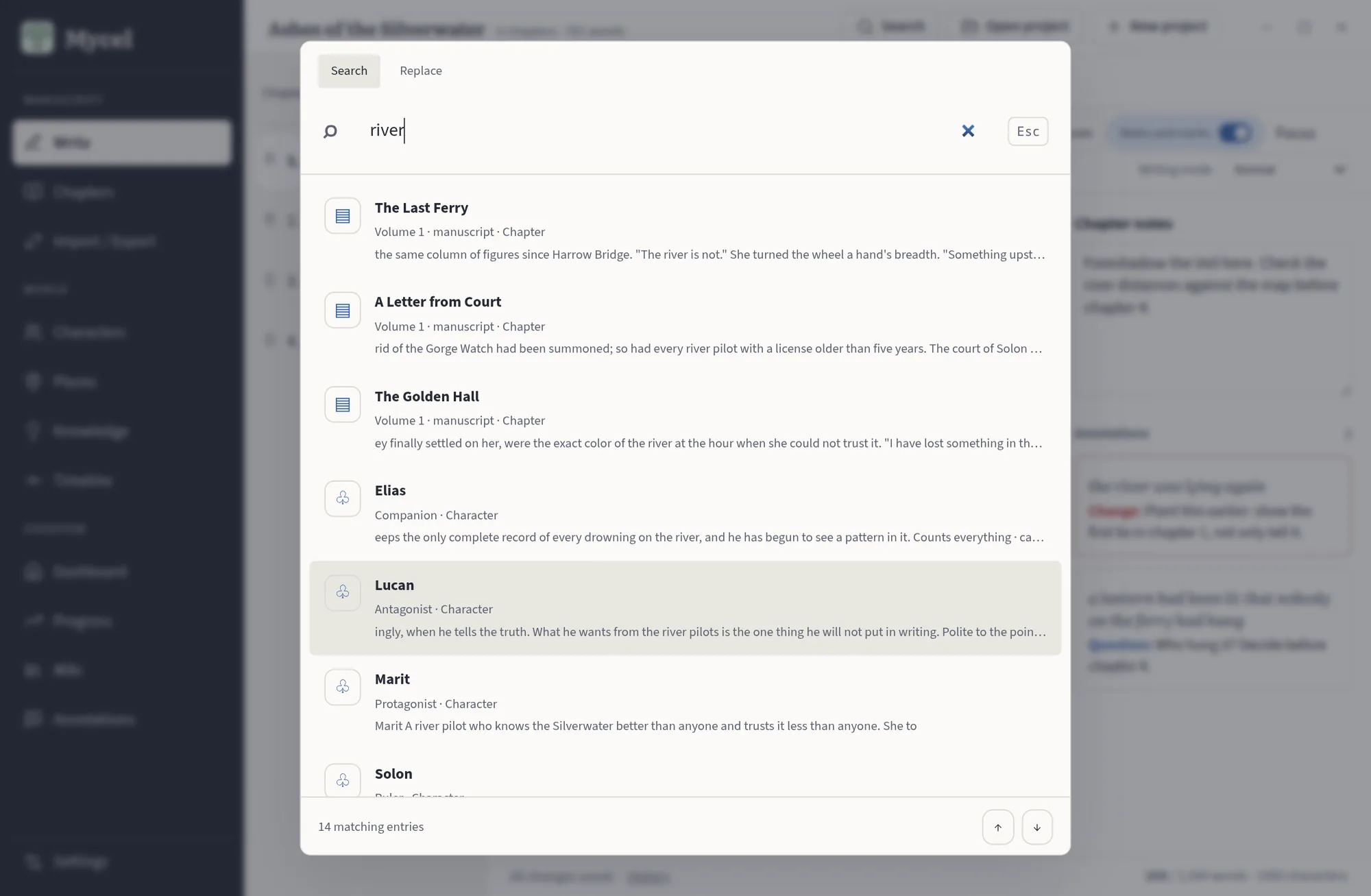
Find a word in chapters, characters, places and lore at once. Replace it in the manuscript in one go, and step through the hits one by one.
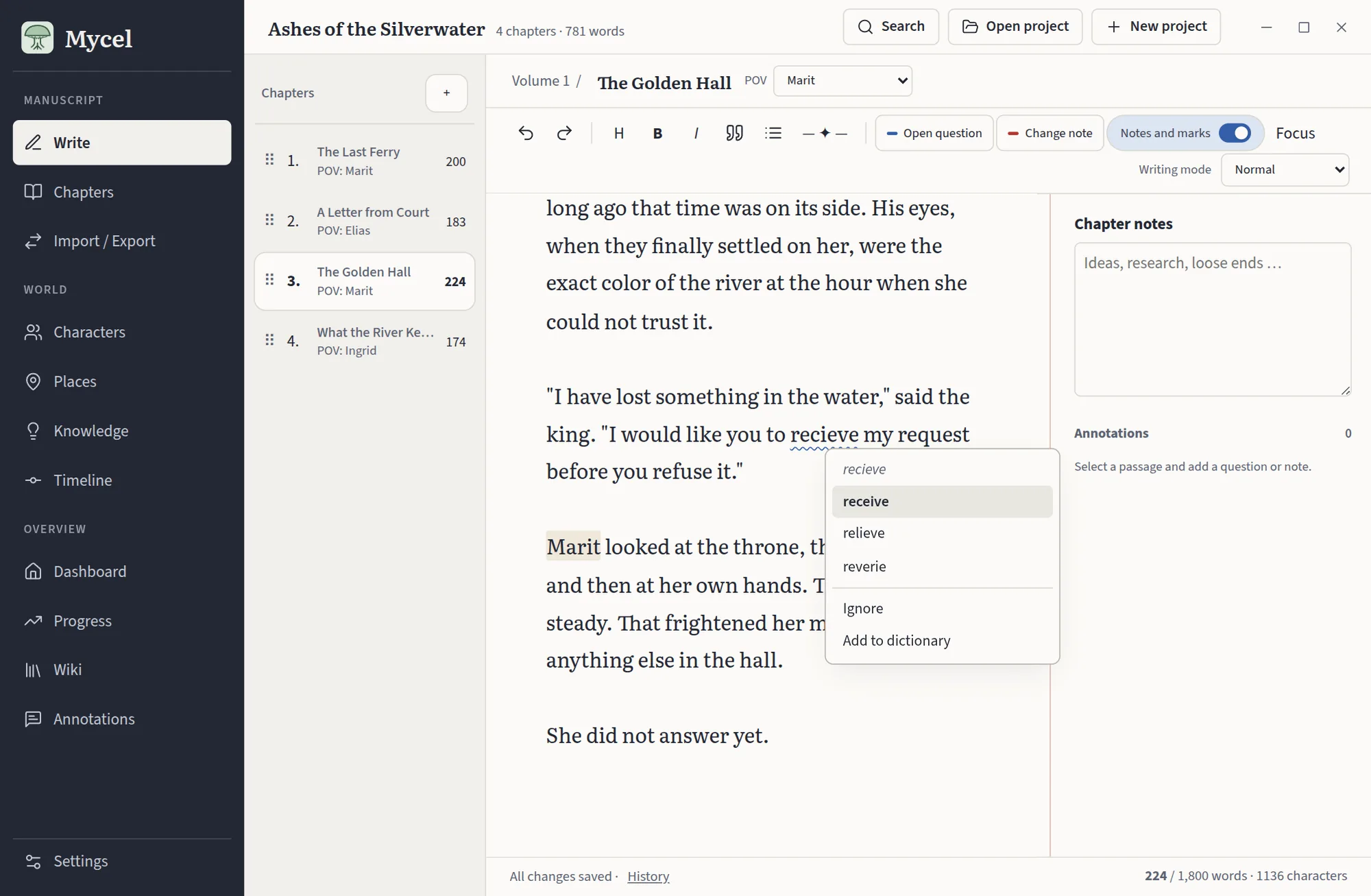
English and German, with wavy underlines and corrections on a right click. Names from your world are never flagged, and words you add stay with the project.
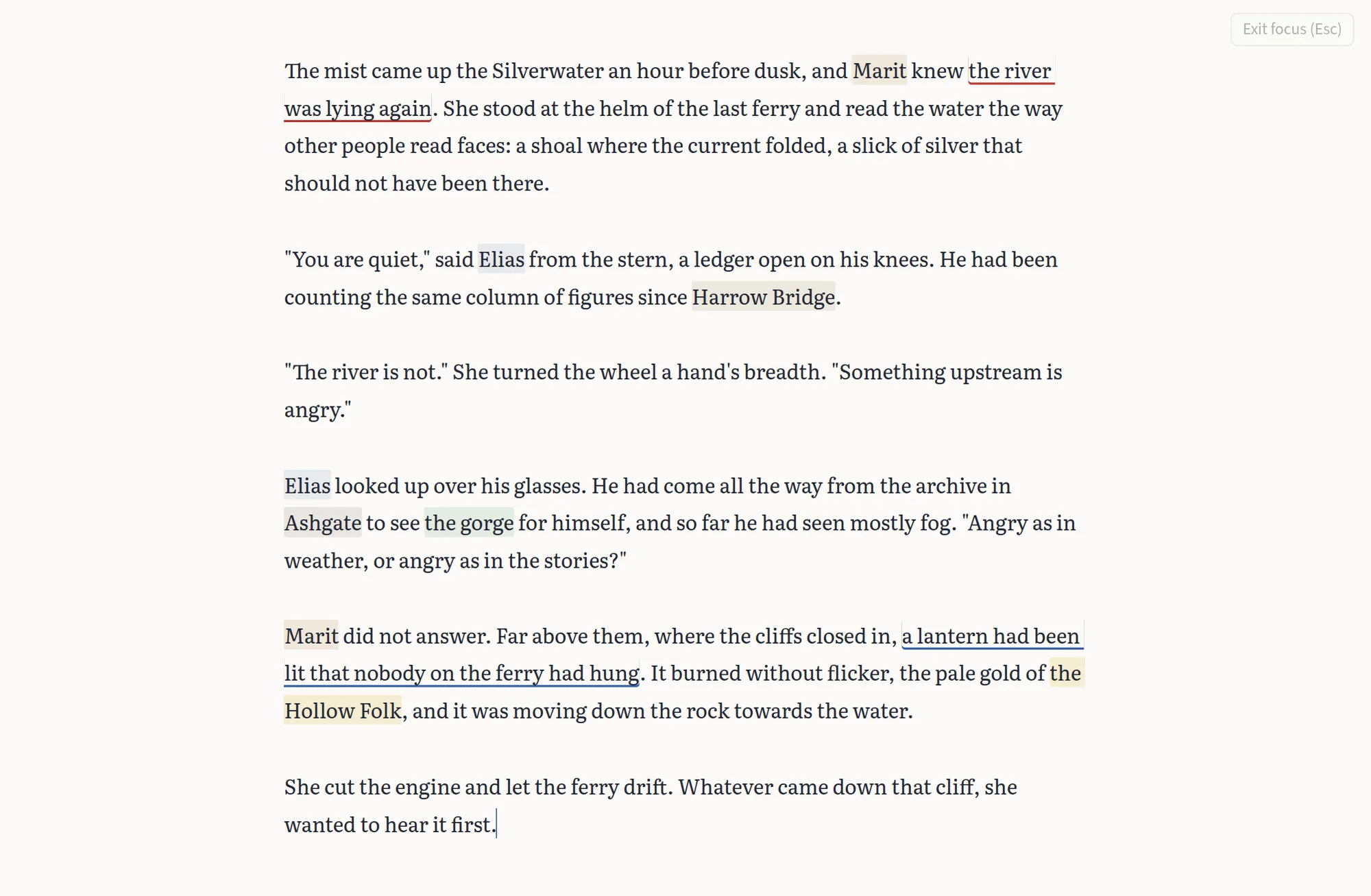
One key hides everything but the text. Blinders mode fades the lines around the one you write in, and typewriter mode keeps that line in the middle of the screen.
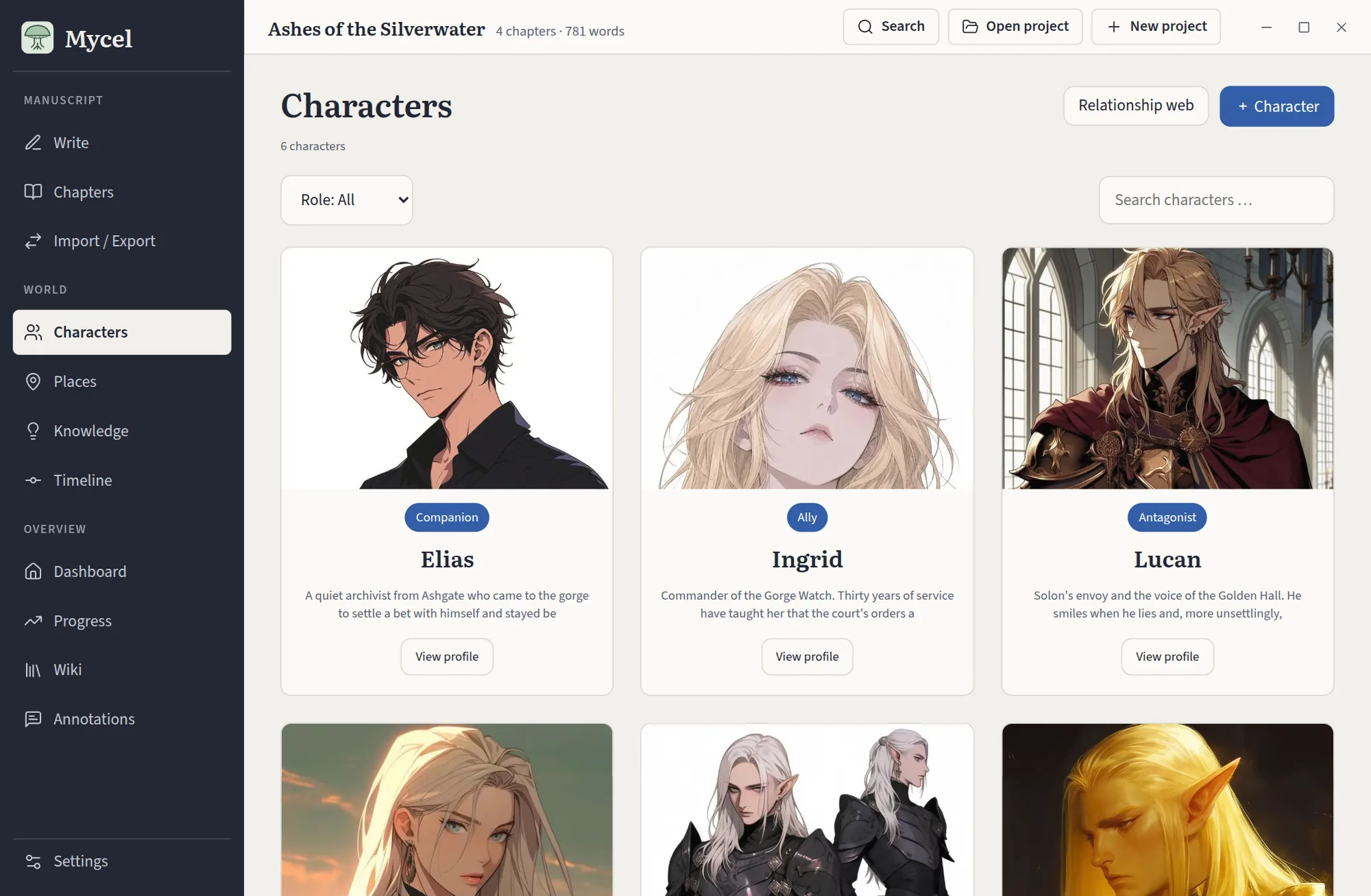
Add characters, places and lore entries once. Mycel highlights their names in your chapters and opens the entry when you click one.
Give each character a portrait, aliases, traits and links to other characters. A mention is found even when you write a nickname.
Organise places from continent to city, and keep magic, peoples, artifacts and religions in their own entries, each connected to the characters and places it touches.
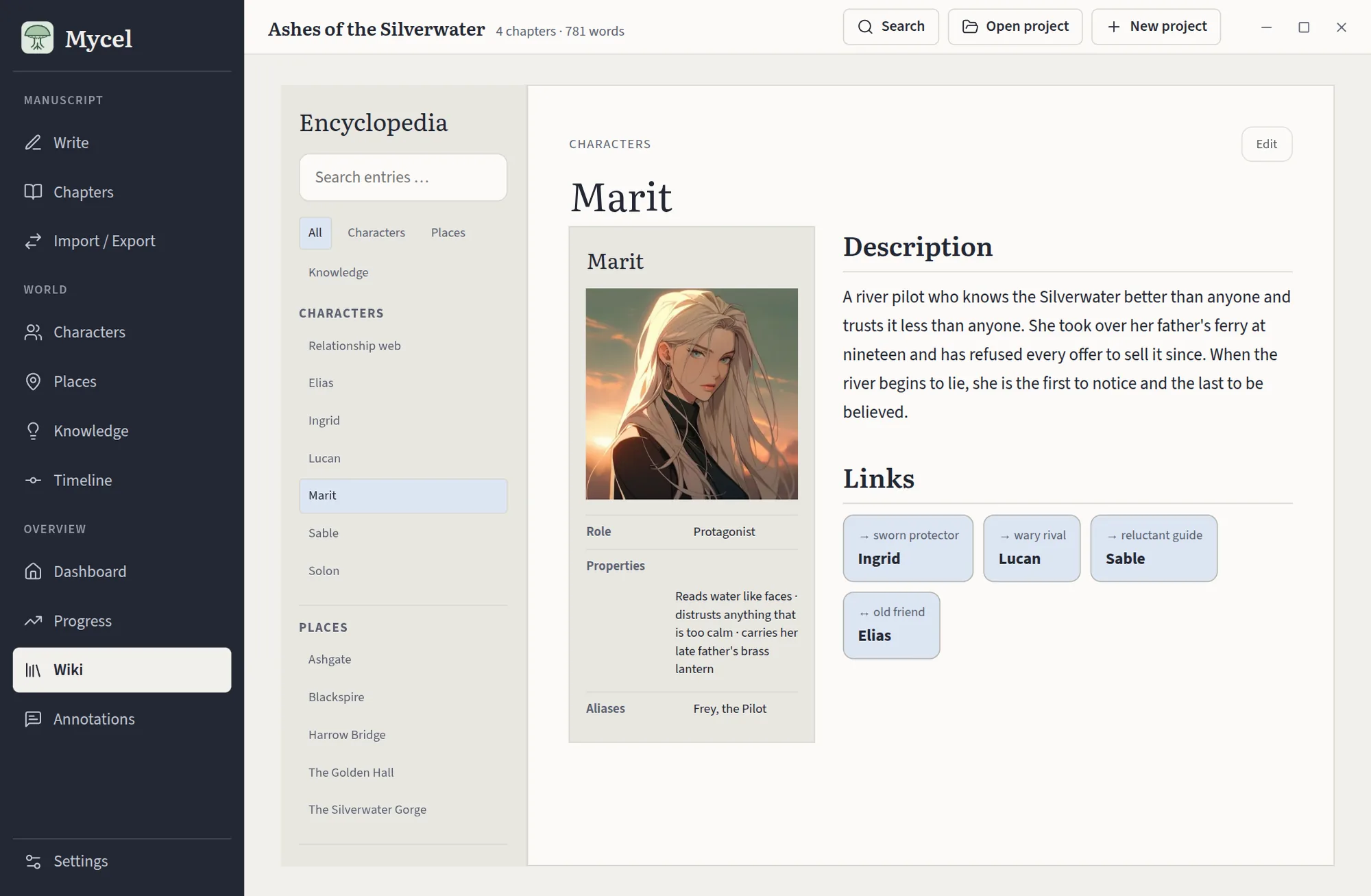
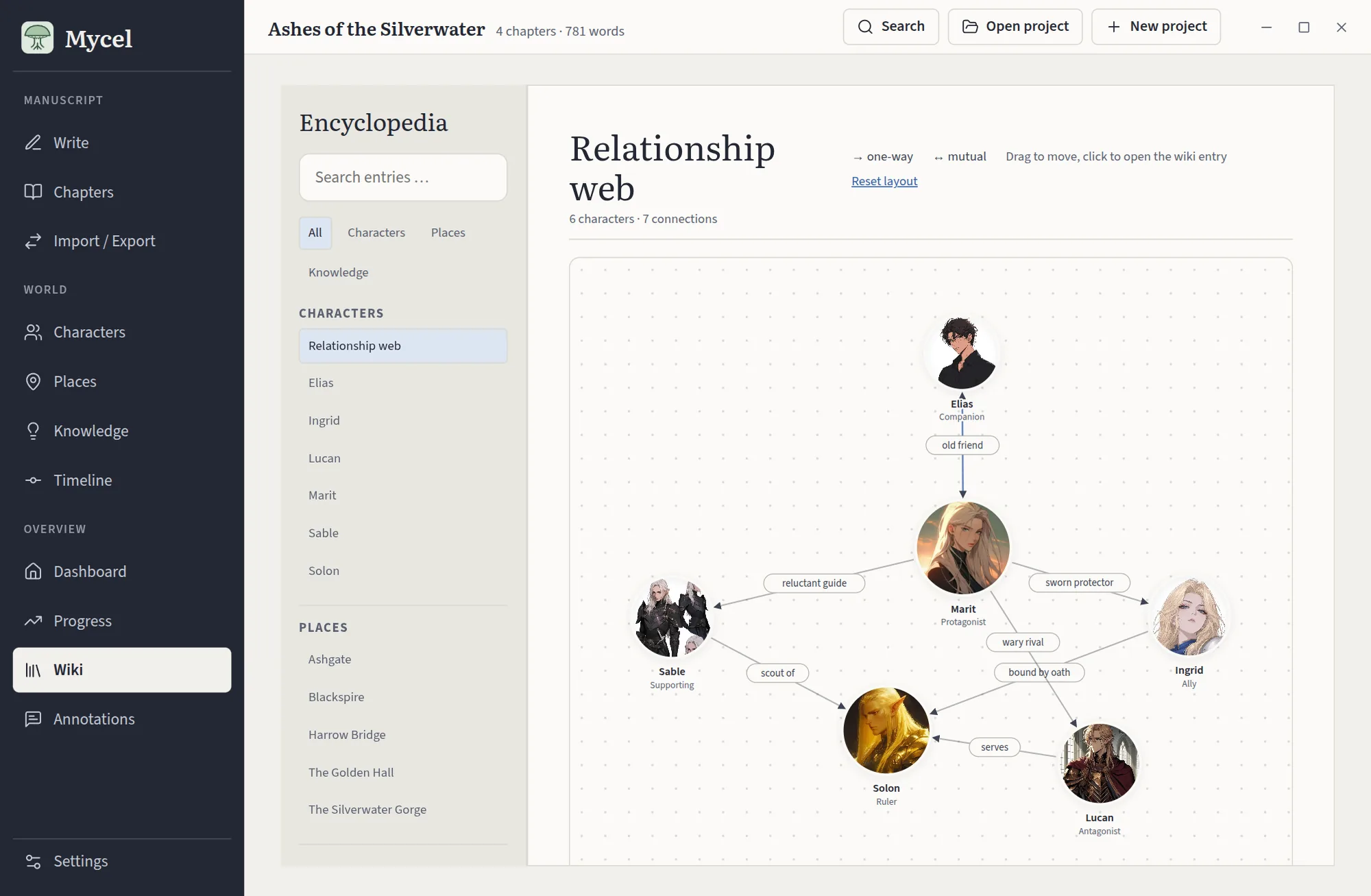
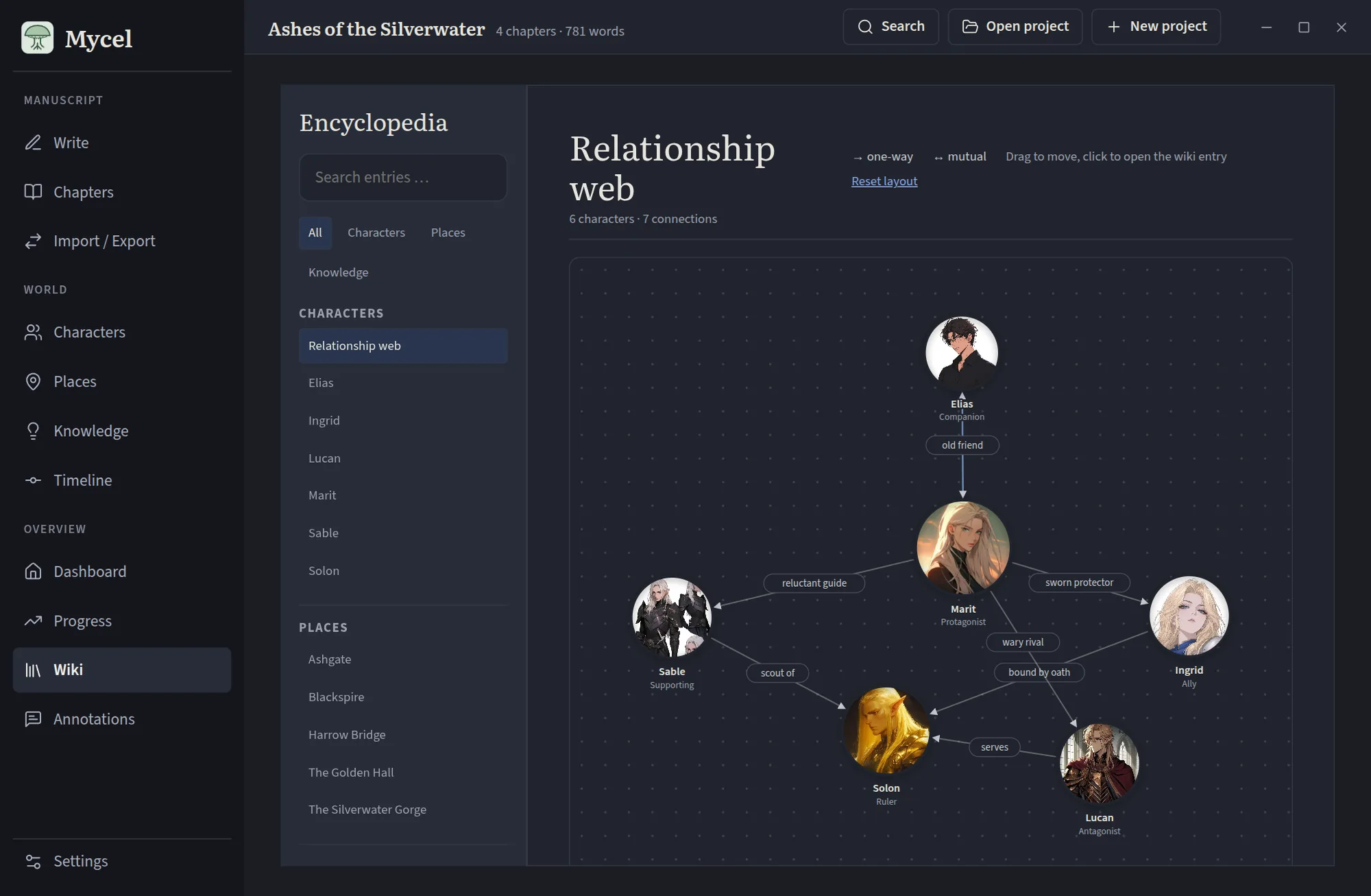
Link two characters in their profiles and the web appears: portraits as circles, the relation on each line, arrows for one-way bonds. Drag the circles into the shape you like, hover one to see who it touches, click it to open the profile.
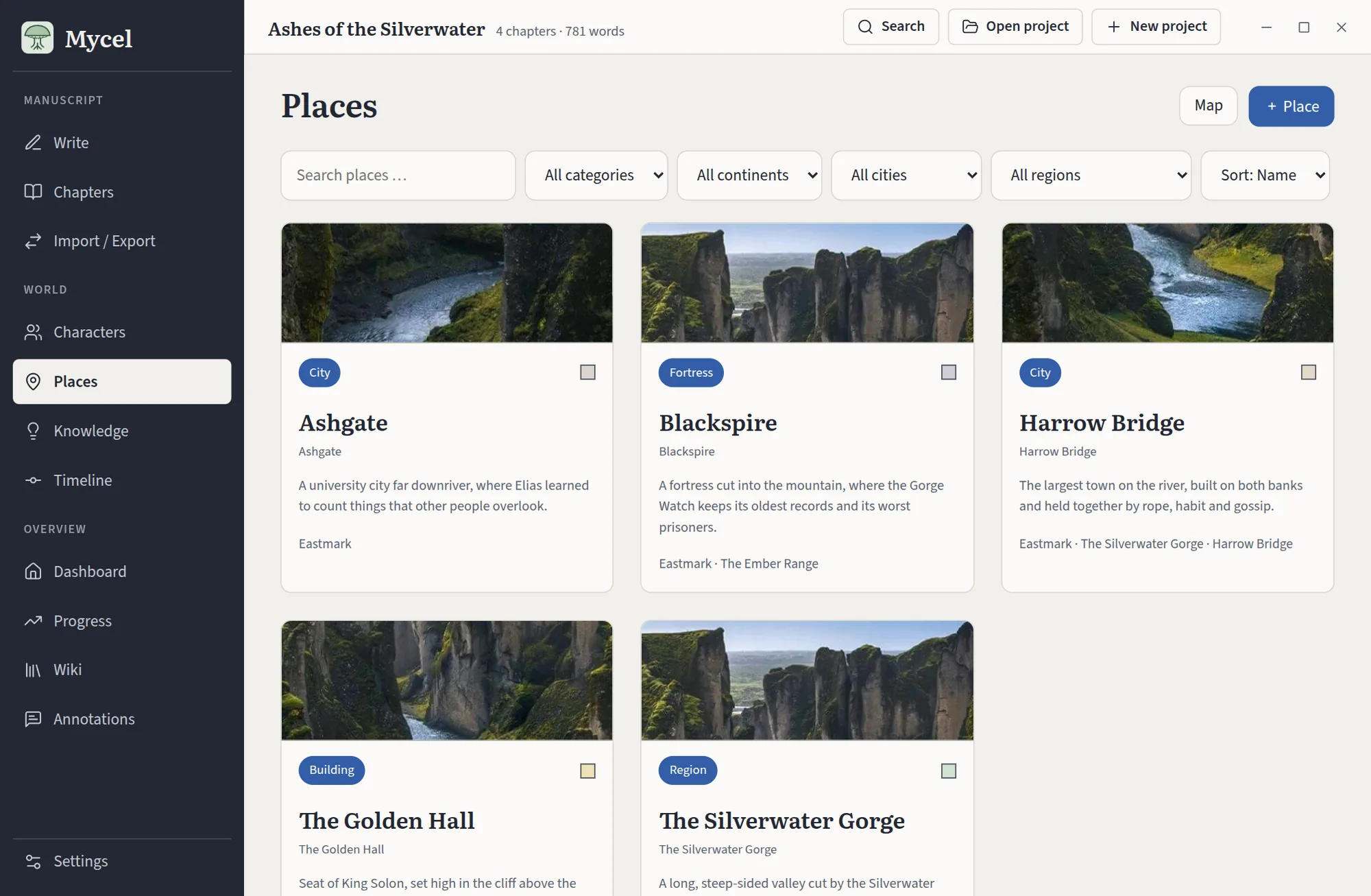
Sort places by category, continent, region and city, and give each one an image.
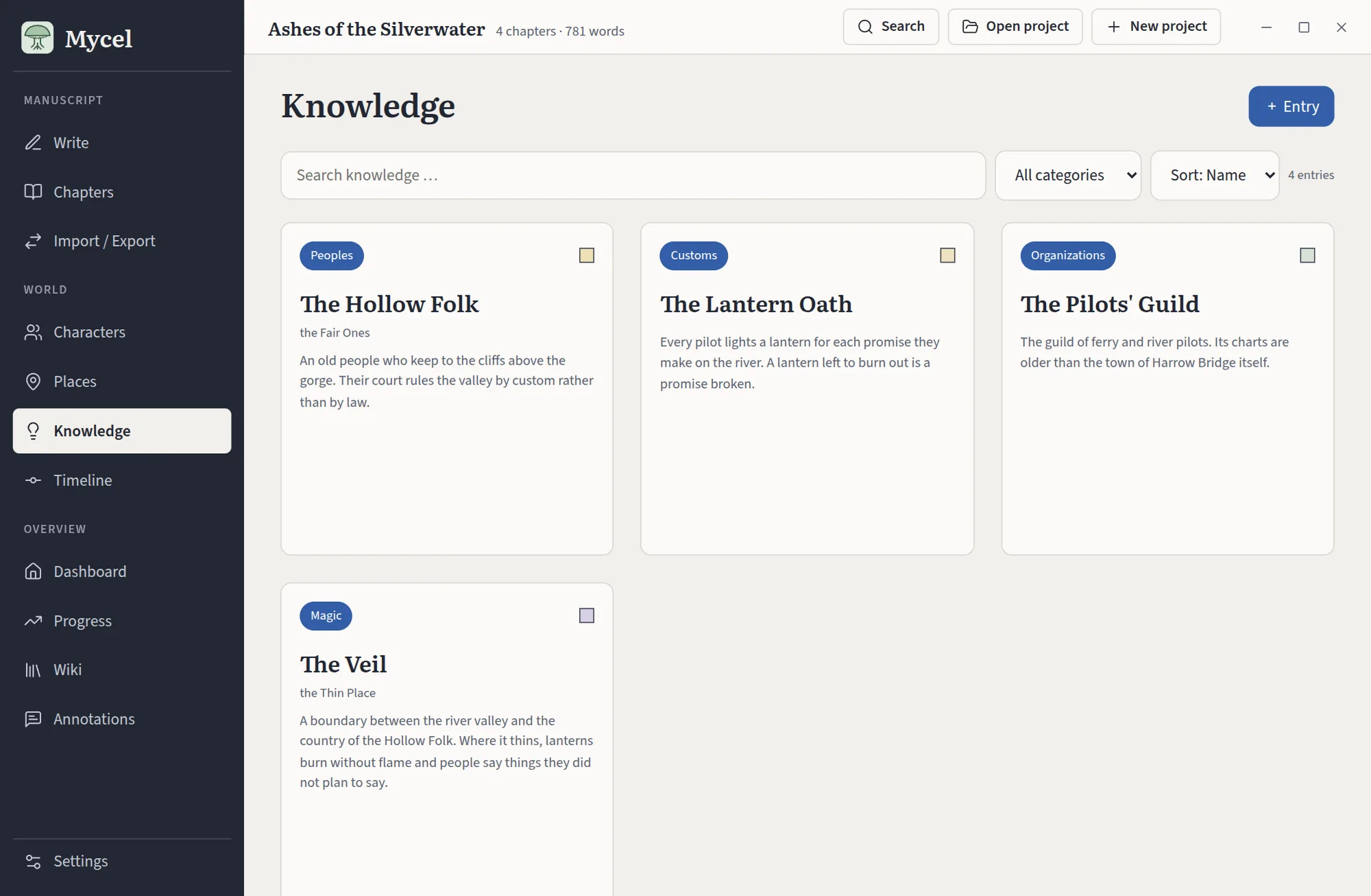
Peoples, magic, customs and organisations, each with aliases and a description.
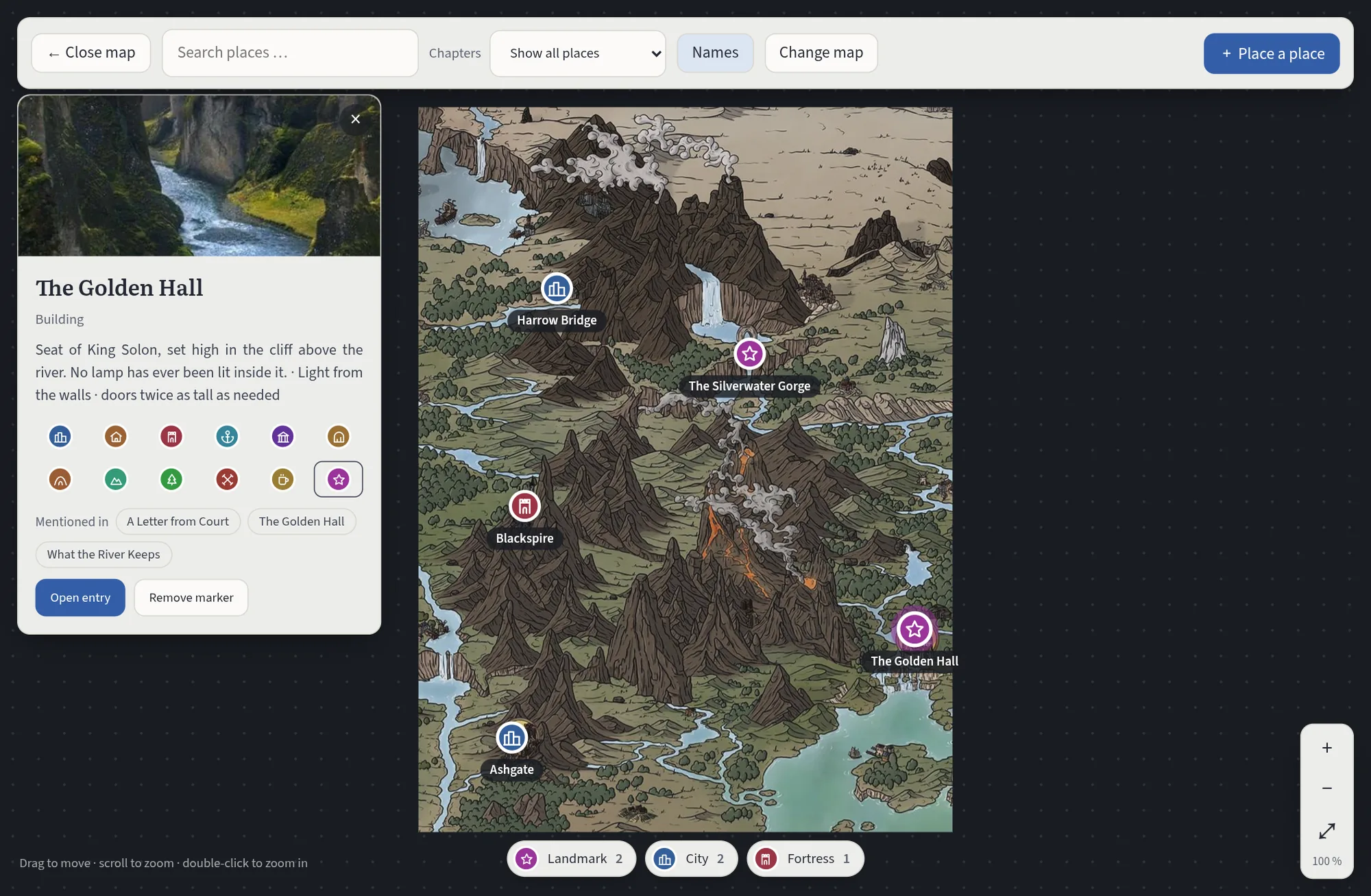
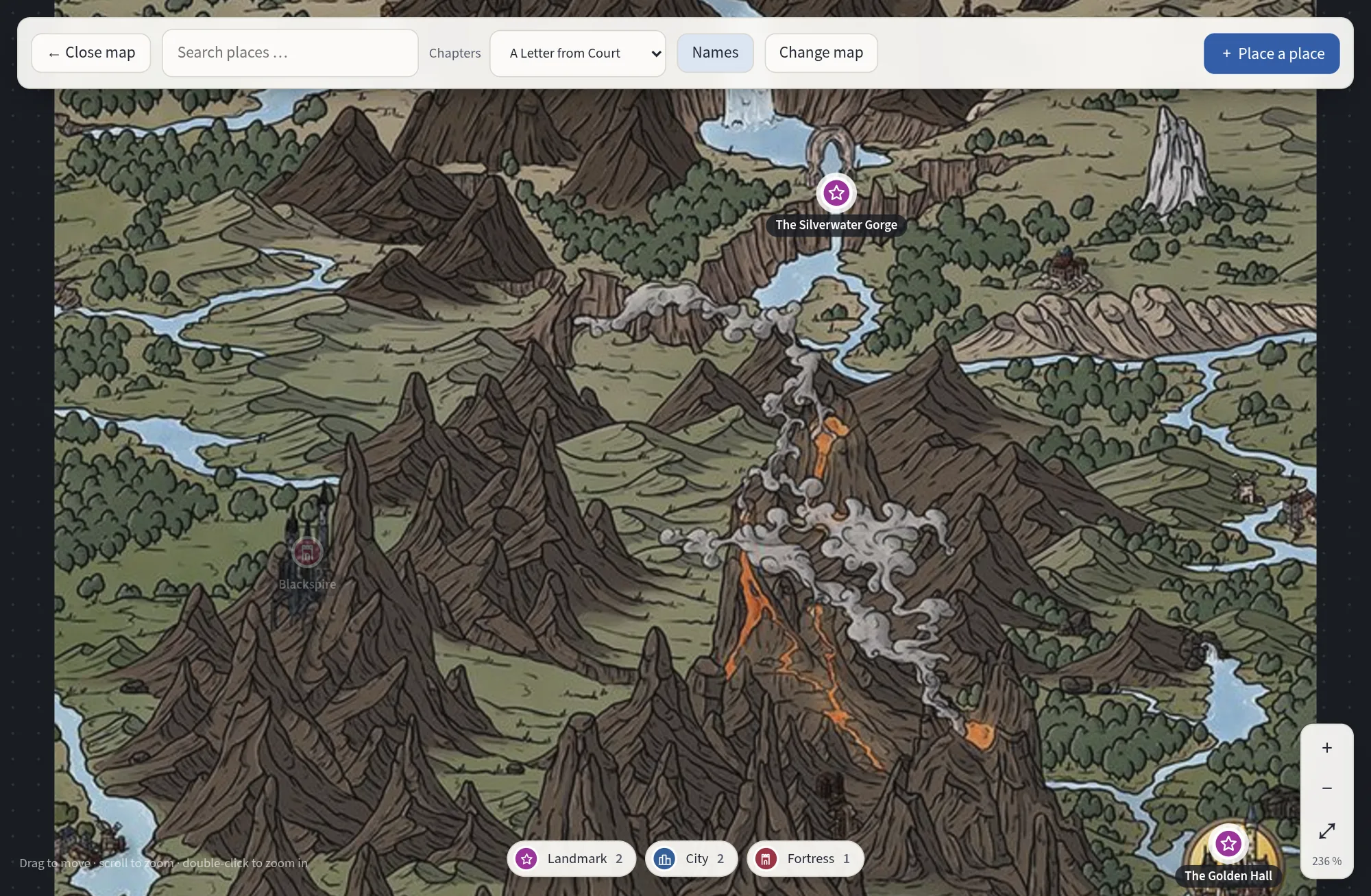
Open your map in full screen, zoom into a coastline and pin every place you have written. Use any picture as the map: a painting, a scan, an export from a map tool.
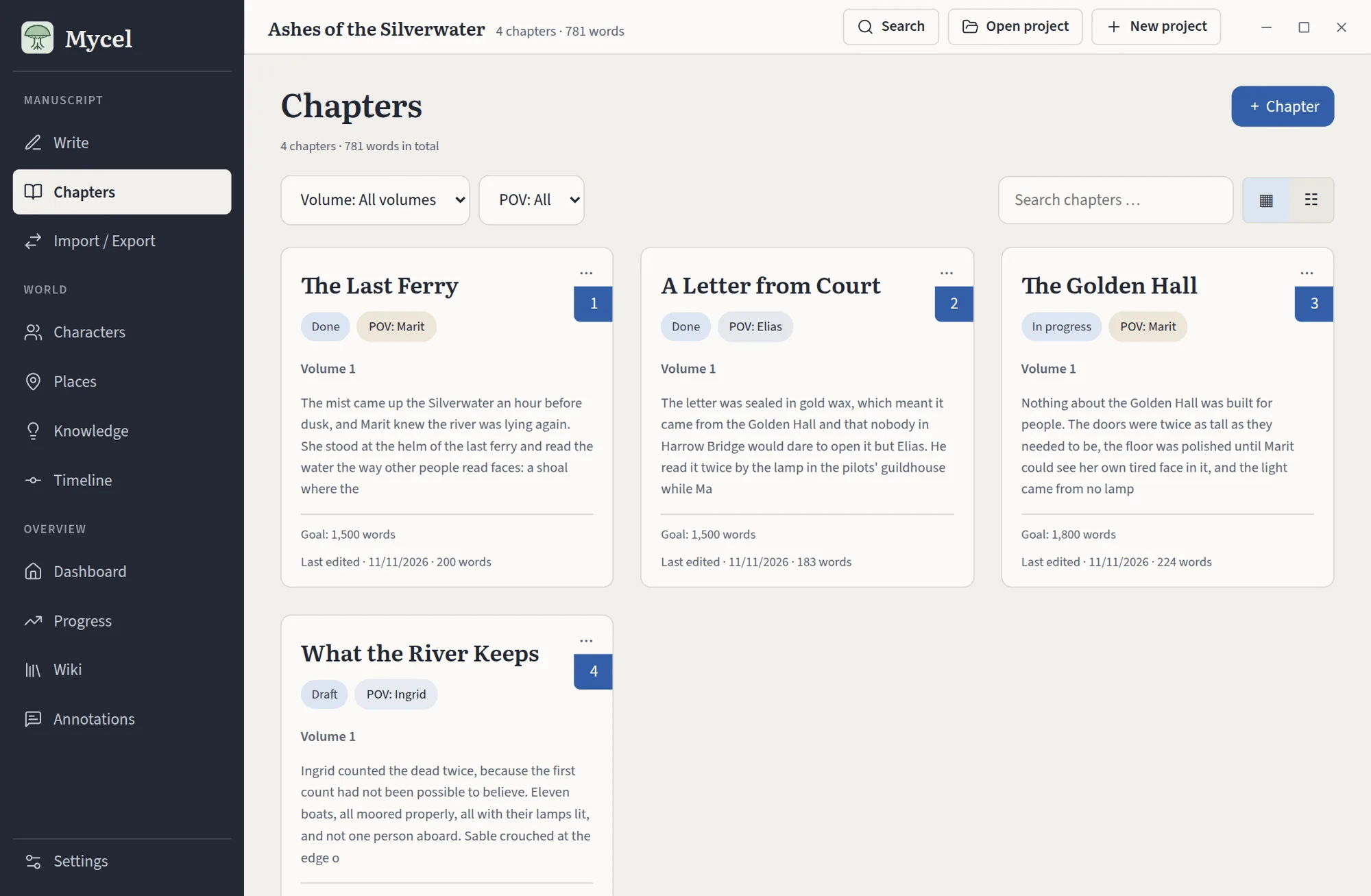
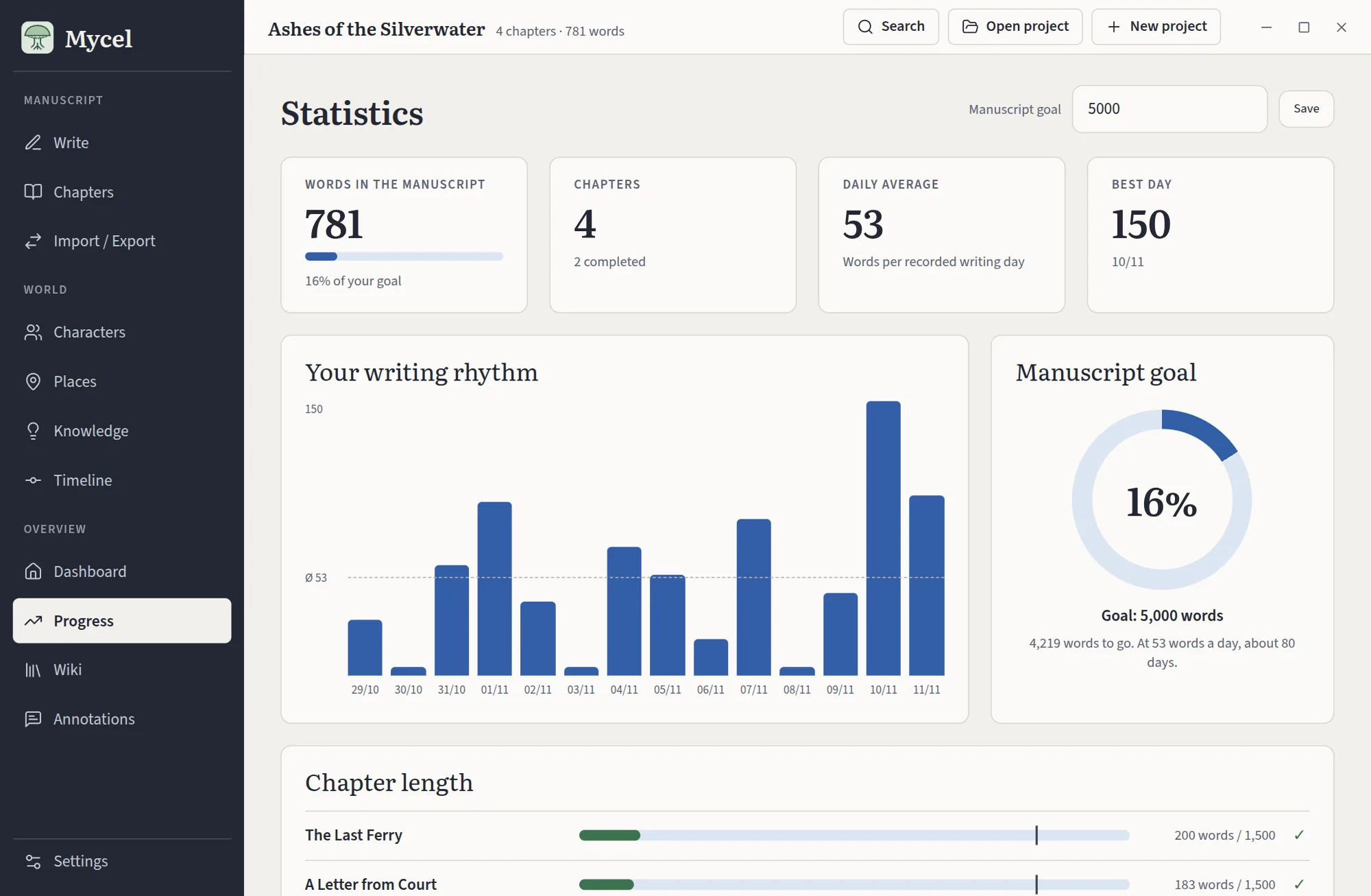
Sort chapters into volumes, give each one a status, a point-of-view character and a word goal, and drag the cards into order. Set a goal for the whole manuscript and see your daily word count over time.
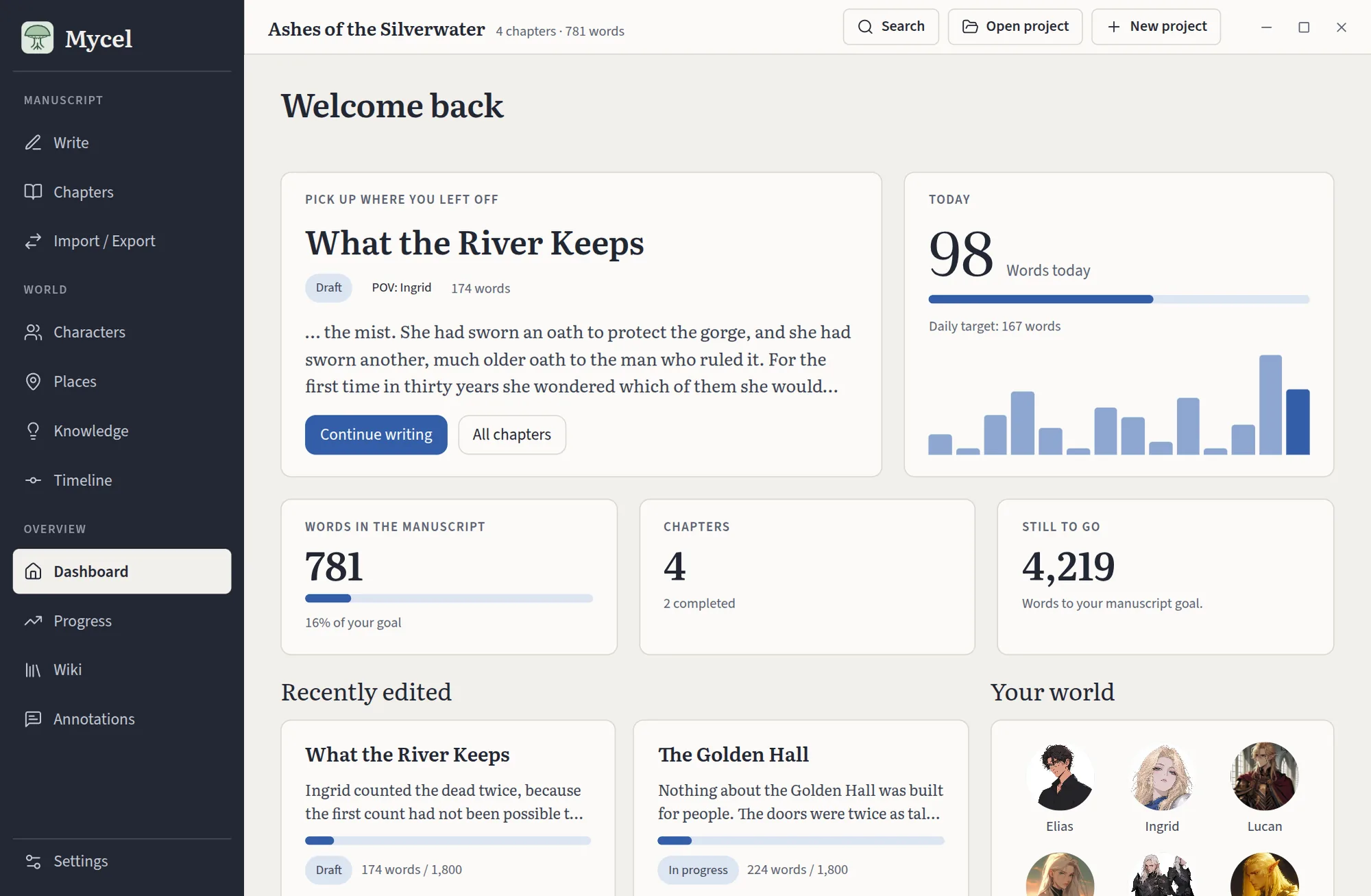
Continue the chapter you edited last, see today's words and what is left to your goal.
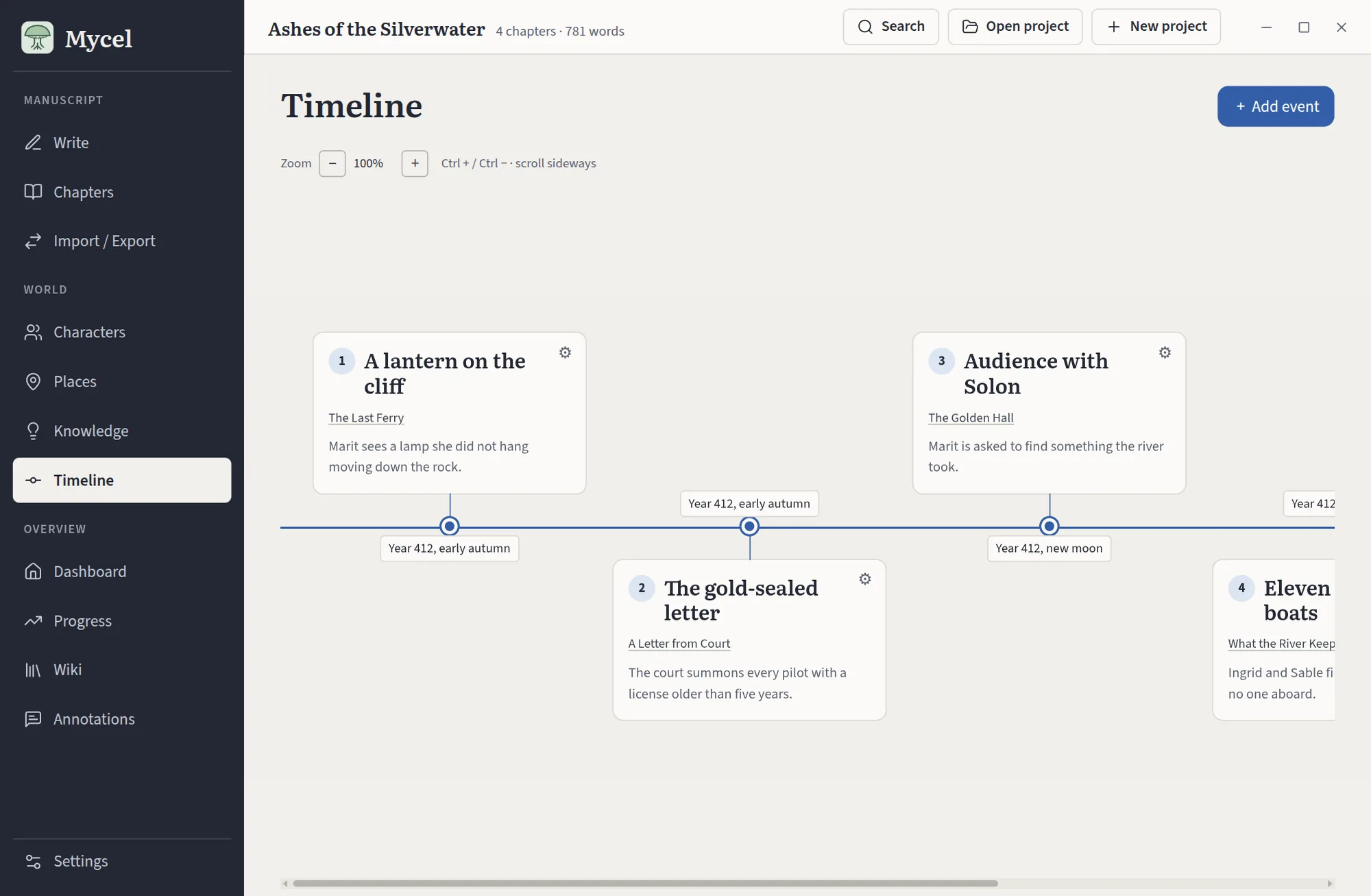
Order events along an axis and link each one to the chapter where it happens.
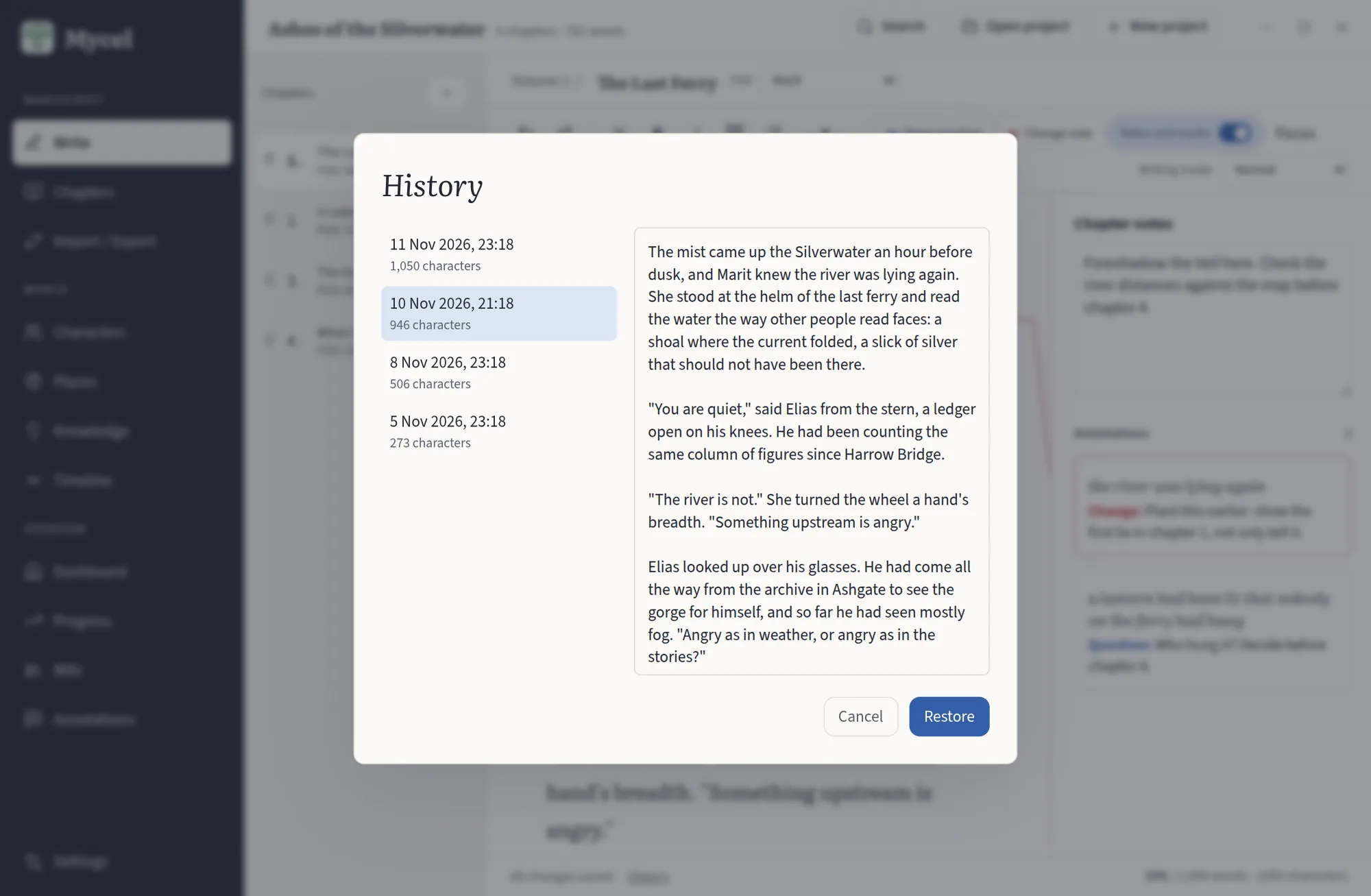
Mycel saves a version of each chapter while you write: all of them for the last day, one a day after that, for as long as you choose. Open the history, read an older version next to the current one and restore it. Restoring keeps your current text as a version too, so you can always go back.
Files are written in a way that survives a crash: a power cut in the middle of a save never leaves half a chapter behind.
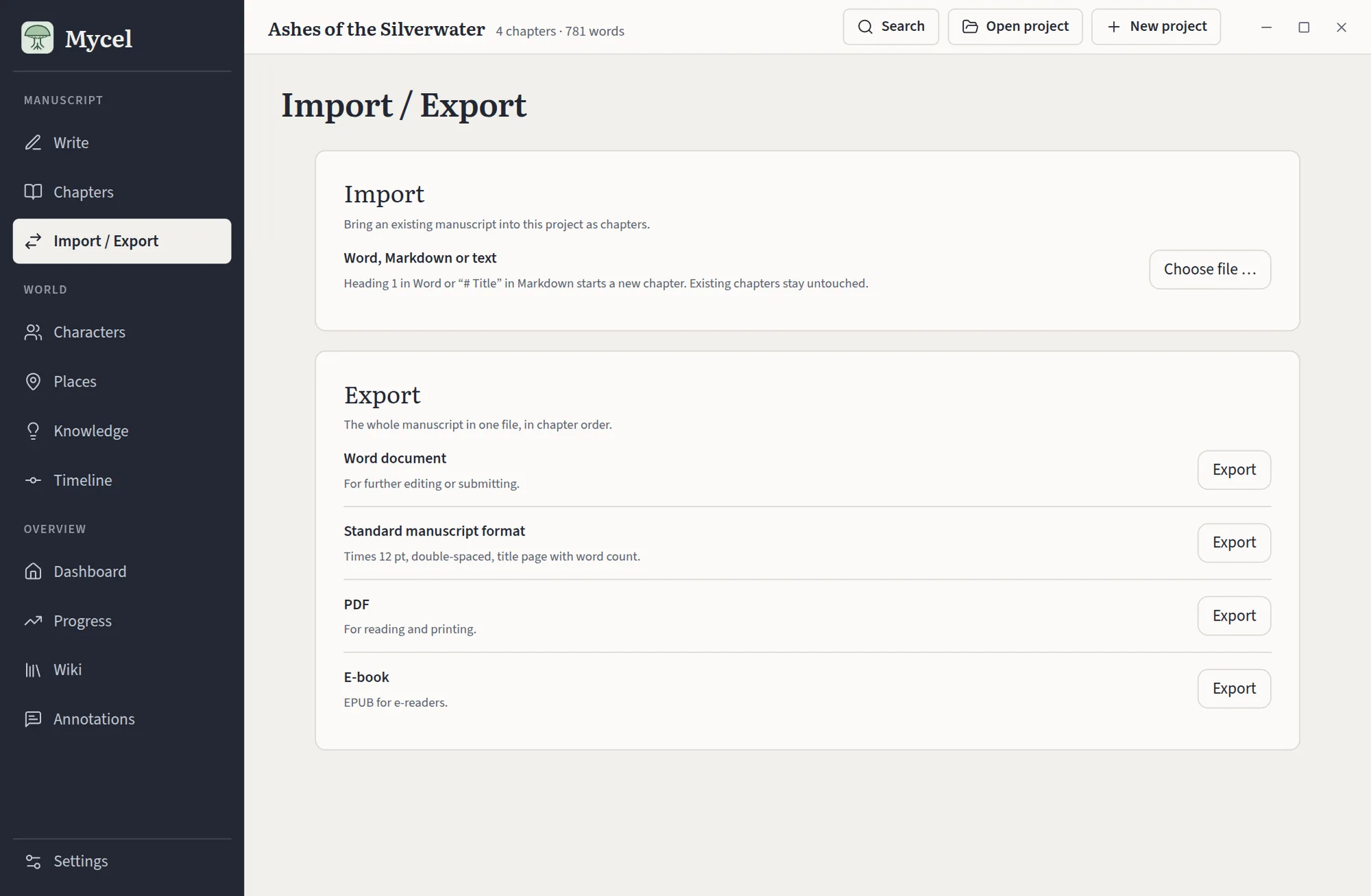
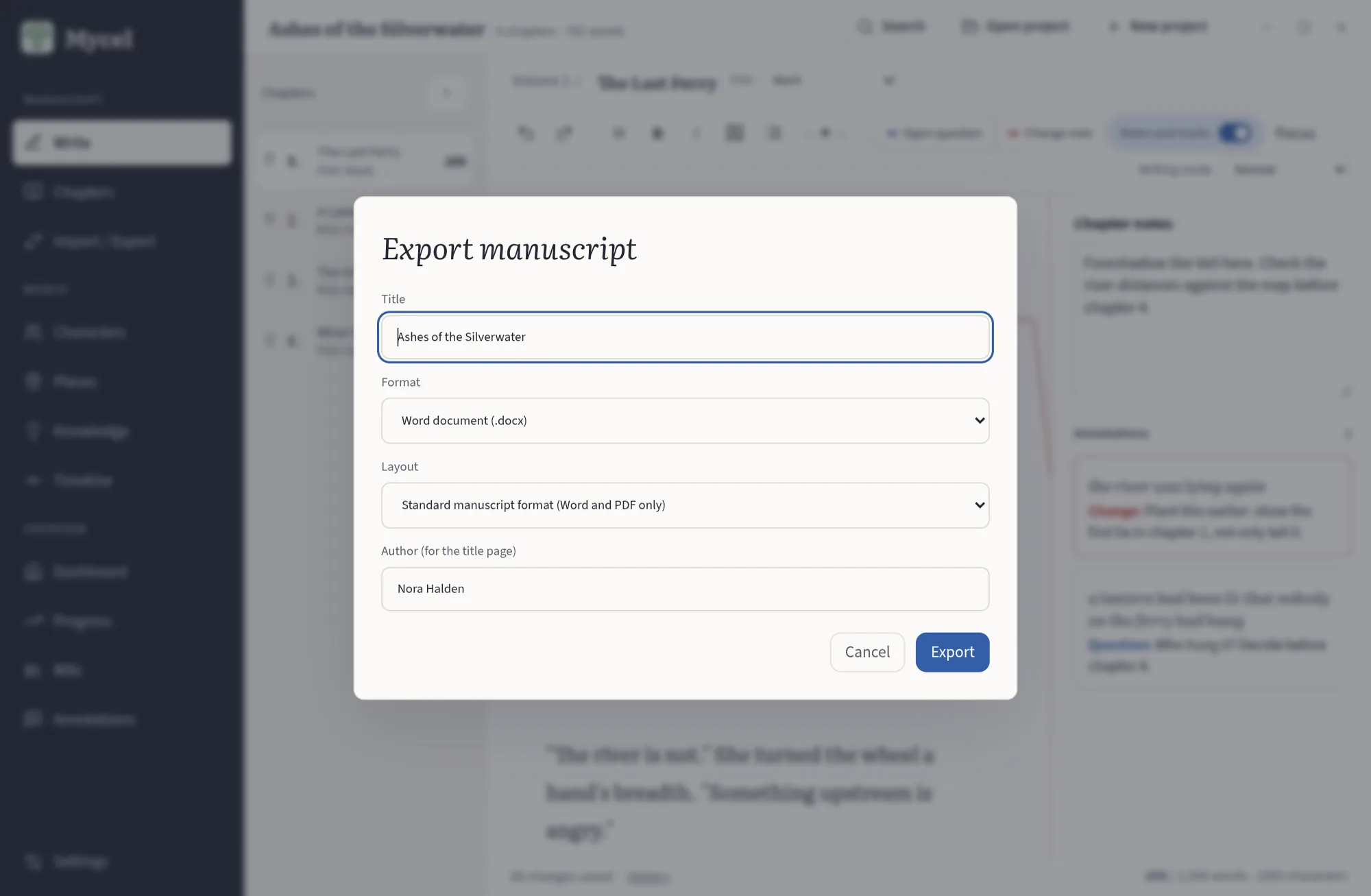
Import chapters from Word, Markdown or plain text. Export the whole book as Word, PDF or an e-book, or as a standard manuscript for agents and publishers.
Choose the colours, the font and the size of the text that suit your eyes, and switch the interface between English and German. Each project has its own language, which sets the default words and the language of its exports.
Chapters, characters, places and lore are Markdown files in a folder you choose. Open them in any editor, keep them in Dropbox or Syncthing, and export to Word, PDF or EPUB when you need to.
There is no account and nothing is uploaded. This site sets no cookies and has no analytics either.
Ashes-of-the-Silverwater/
├── Chapters/
│   ├── the-last-ferry.md
│   └── a-letter-from-court.md
├── Characters/
│   └── marit.md
├── Places/
│   └── silverwater-gorge.md
├── Knowledge/
│   └── the-veil.md
├── Media/
└── .mycel/project.json
---
name: "Marit"
role: "Protagonist"
aliases: ["Mar", "the Pilot"]
relationships: [{"target":"elias",
"type":"old friend"}]
---
A river pilot who knows the Silverwater
better than anyone and trusts it less.Buy Mycel once and keep it. Your files stay plain text whether you keep using Mycel or not.
No. Writing, spell checking, the map and exports all work offline.
In a folder you choose. Chapters, characters, places and lore are Markdown files; the project settings, the map pins and the version history are small files in a hidden .mycel folder next to them.
Yes. The chapters are plain Markdown, and Mycel exports to Word, PDF and EPUB.
Word, Markdown and plain-text files import as chapters. Importing a Scrivener project is not available yet.
Yes. Any image works: PNG, JPG, WebP or SVG. Put it in the project and choose it as the map, then pin your places on it.
Windows and Linux first. A macOS version follows.
The interface and the spell checking support English and German.
No. You pay once.